Grade iPhone footage
An iPhone Pro can record Apple Log, a flat, gray picture that keeps the highlight and shadow detail a normal iPhone video discards. Shoot in it, bring the clips into Kino and ask the agent for the film look. The outdoor clips on this page were shot handheld in daylight, with no lights.
Import the ProRes clips from my iPhone and give them the film look.
In a launch video
Raunak Chowdhuri, a co-founder of Reducto, shot the ParseJudge launch video at his desk in log, then graded it and corrected his eye contact in Kino.
Record in Apple Log
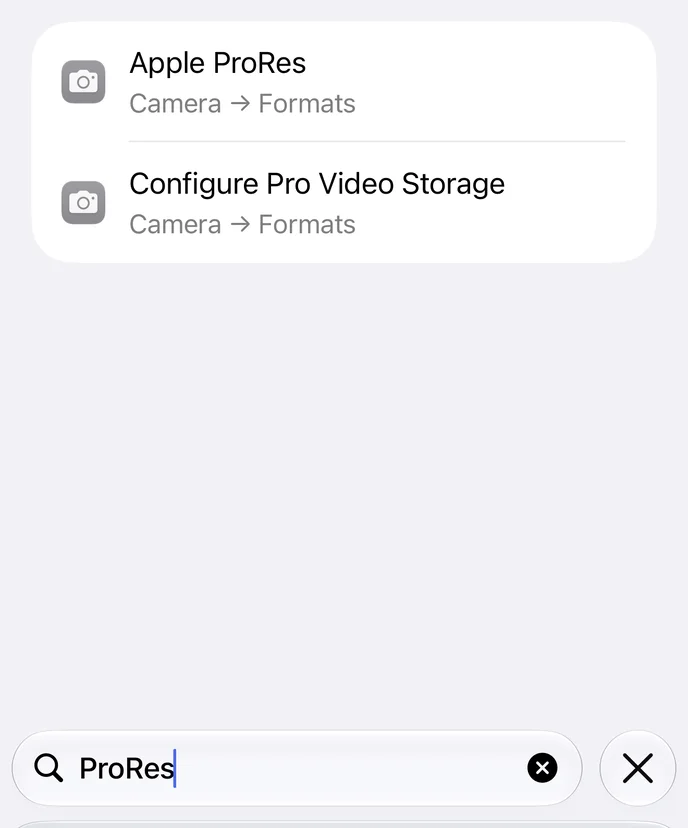
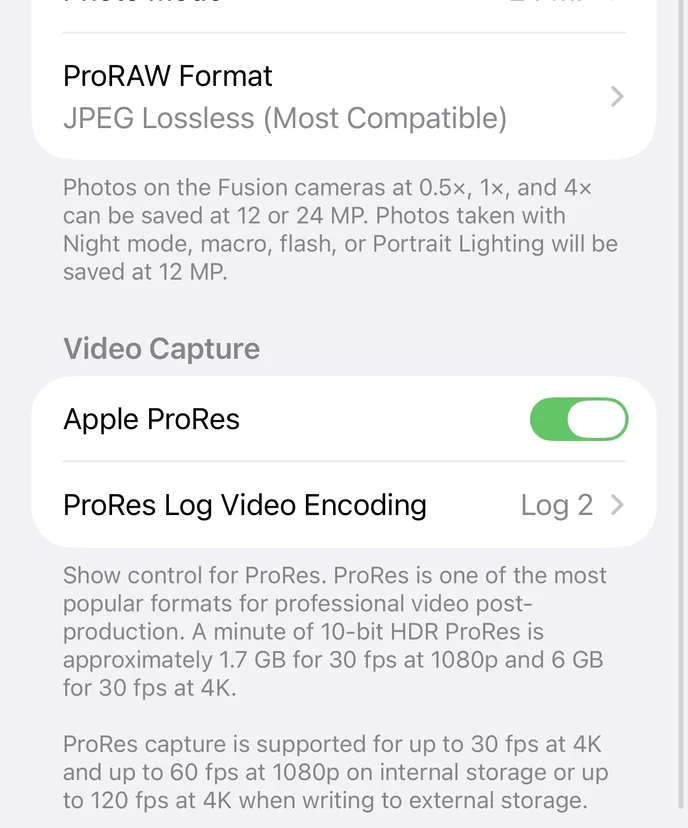
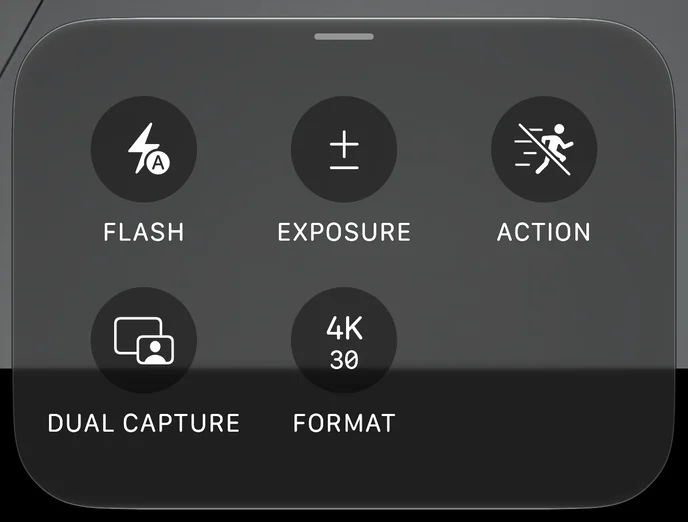
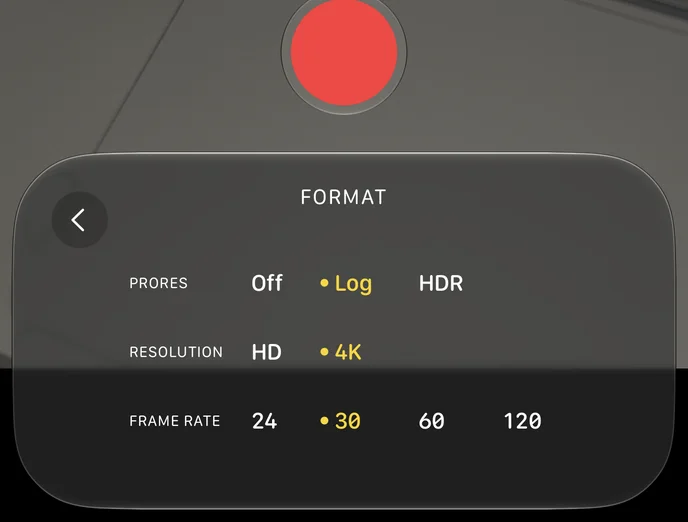
Only Pro models record ProRes. If Camera’s Format panel has no ProRes row, turn it on in Settings first: search Settings for ProRes and you land on the switch.
The clip looks gray and low in contrast on the phone. Log keeps 10 bits per channel, about a billion colors where standard video has 16 million, so the grade can darken a sky or warm a face without banding.
- Phones
- Pro models only. ProRes from iPhone 13 Pro, Log from iPhone 15 Pro.
- File size
- About 6 GB a minute at 4K, 30 frames a second, and 1.7 GB at 1080p.
- Frame rates
- Up to 4K at 30 on the phone. Faster 4K, up to 120, records to an external SSD over USB-C.
Bring the clips into Kino
Plug the iPhone into your Mac, unlock it and tap Trust. In the Kino desktop app, ask the agent for the clips you want. It reads the phone’s photo library over USB, shows you a shortlist and copies what you pick. Kino plays ProRes as recorded, with no transcode.
Find the ProRes videos I shot on my iPhone this weekend and import them.
Ask for the film look
Film Look is Kino’s film emulation. It converts the log picture through a negative stock and a print stock, then adds halation, the warm glow film leaves around bright edges. Ask for it by name, on one clip or on the whole timeline.
Give every clip on the timeline the film look.
Steer the grade with a reference
The film look is a starting point. To push it further, name a film or paste a frame from one, and say what in the shot should change. The agent adjusts exposure, warmth, contrast and halation on top of the look.
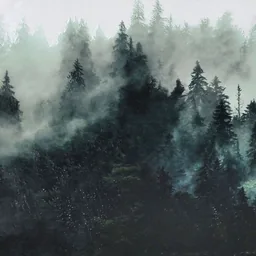
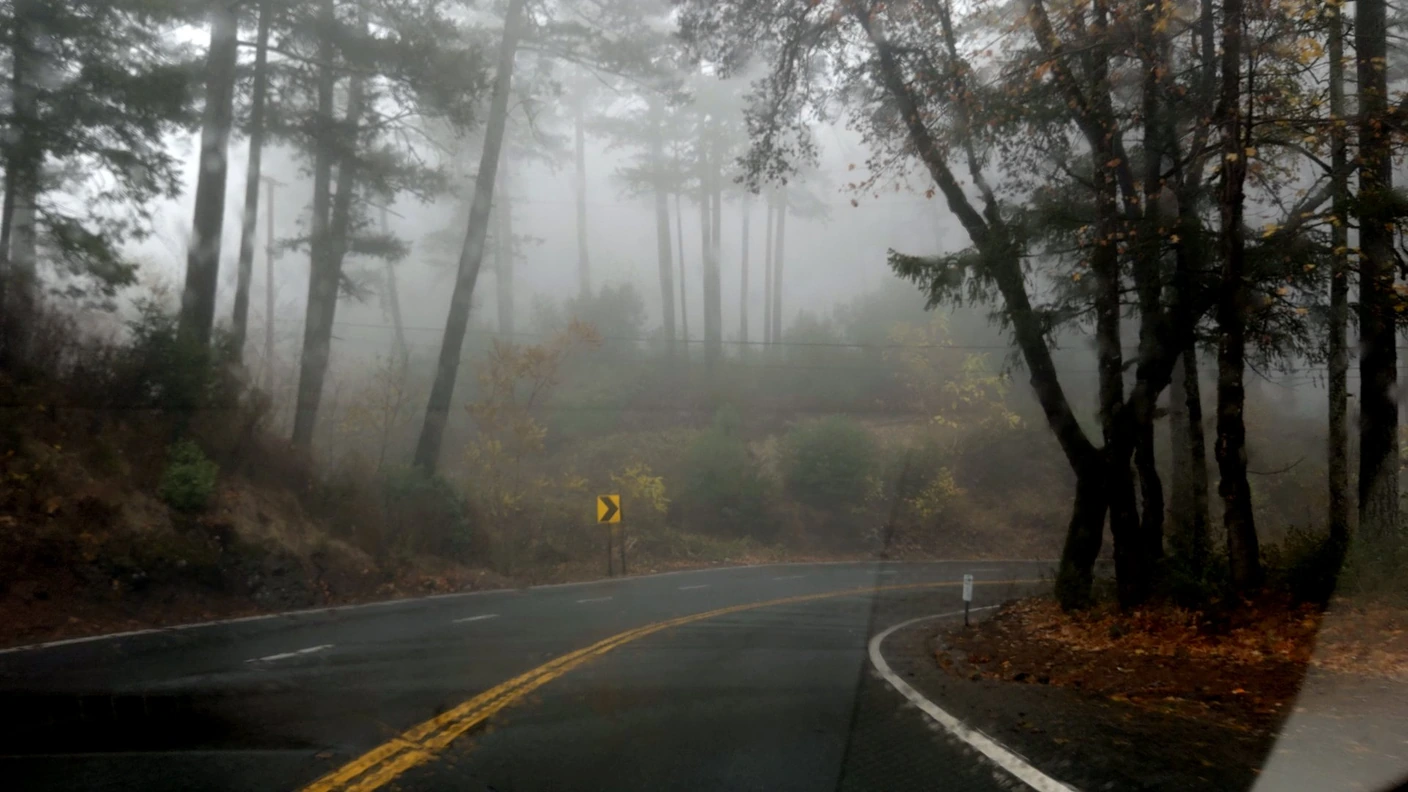
Grade the forest like this frame, sort of like the woods in Twin Peaks too.
Light the shot
A grade cannot add light that was not there. Outdoors, daylight is enough. Indoors, start with one soft light to one side of the camera: the key. A dimmer fill on the other side softens the shadows, and a backlight behind you separates you from the wall.